How to import quiz questions with the bulk import option
Bulk quiz import allows you to save time by uploading multiple quiz questions at once, instead of creating them manually one by one. This is especially useful if you already have questions prepared in a spreadsheet.
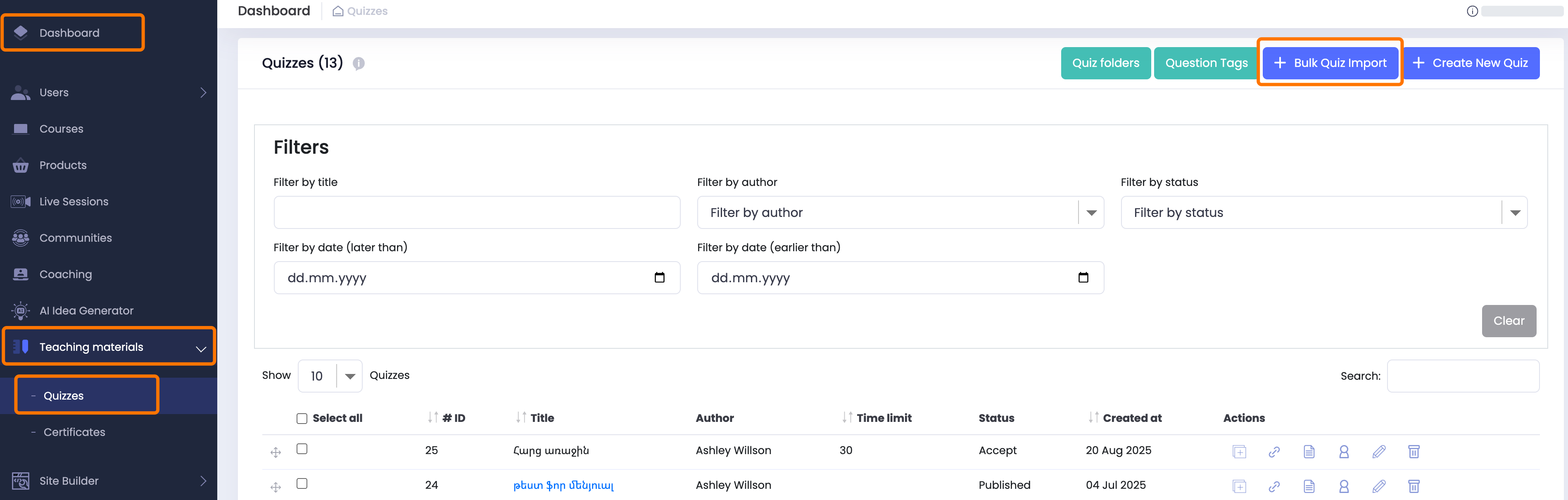
- From your Dashboard, go to Teaching Materials → Quizzes.
- Click on Bulk Quiz Import in the top-right corner.
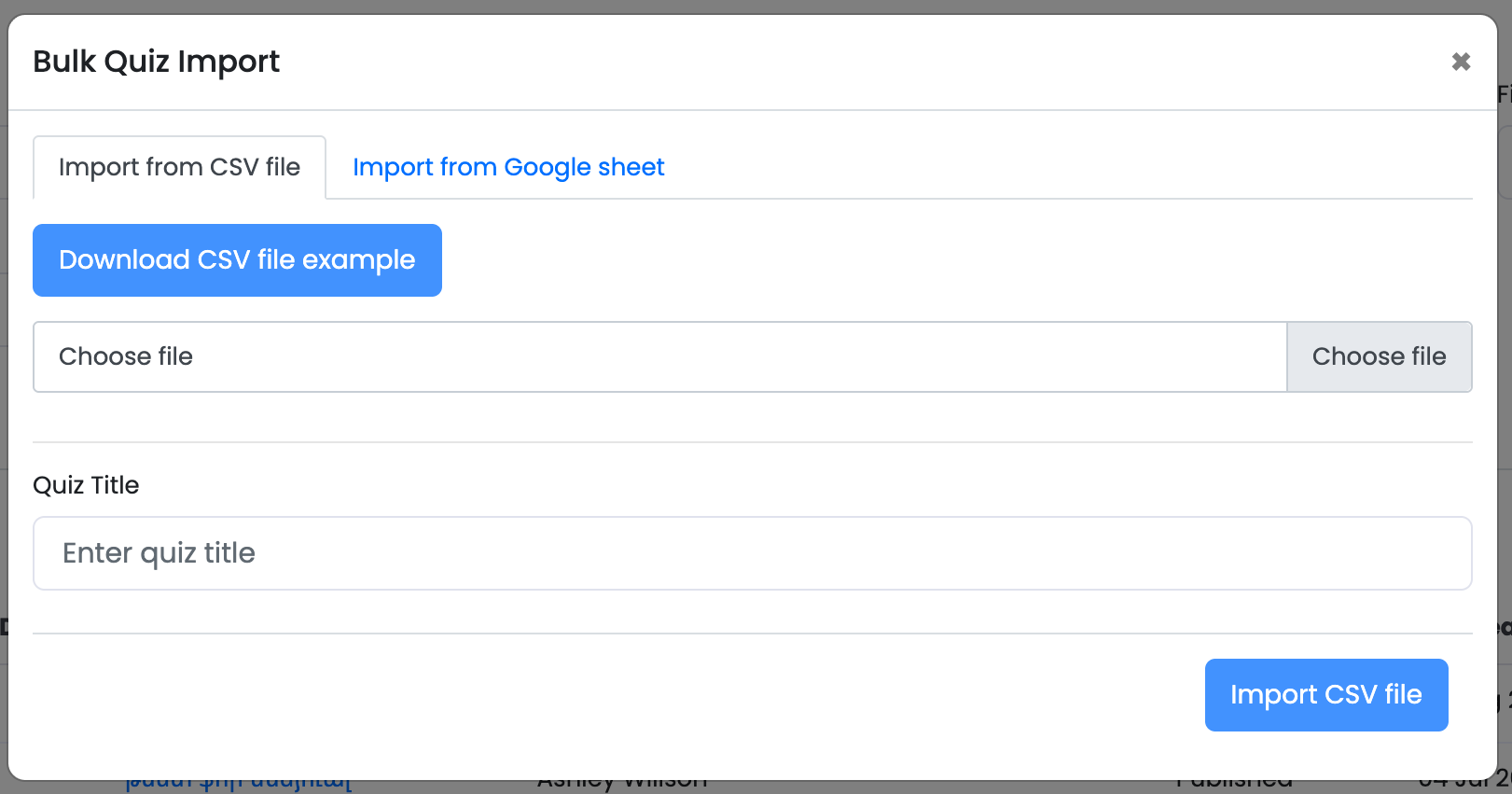
- In the pop-up window, click Download CSV file example.
This will give you the correct format for preparing your quiz questions and answers.
Choose Import Method
You can import quiz questions either by:
- Importing from CSV file
- Importing from Google Sheet
1.Import from CSV File
Prepare Your Questions
Open the downloaded CSV file and enter your quiz questions, answers, and correct answers according to the provided format.
⚠️ Make sure to carefully follow the instructions in the first page of the template։
Upload Your File
- Click Choose file and upload your prepared CSV file.
- Enter your Quiz Title in the field provided.
- Click Import CSV file to complete the process.
2. Import from Google Sheet
- Select the Import from Google Sheet tab.
- Enter your Quiz Title.
- Enter the Google Sheet ID where your quiz is prepared following the same format rules.
- Click Import Google Sheet to complete the process.
CSV/Google Sheet Template Instructions
Use this spreadsheet to prepare and bulk-import questions into your website.
The following instructions and examples will help you prepare your questions within this document.
Supported Question Types
Multiple Choice (MC)
Single Choice (SC)
Dropdown (DD)
⚠️ Important:
Question type must be written exactly in this format (MC, SC, DD).
If the abbreviation is wrong (e.g., “multiple choice” instead of “MC”),the process will fail.
Do not rename or modify any column titles. If any column title is changed, the import will fail.
Columns Explanation
Type
Only one of the following values is allowed:
MC – Multiple Choice (multiple correct answers possible)
SC – Single Choice (only one correct answer)
DD – Dropdown (only one correct answer)
Question
Enter the full question text here. Uteach does not limit the length of the text.
Correct Answer
Always fill this column, blank values are not allowed.
For SC and DD: enter the number of the correct answer (e.g., 2).
For MC: enter the numbers of the correct answers separated by commas (e.g., 1,3).
⚠️ If you indicate multiple correct answers (e.g., 1,3) but provide text for only one of those answer fields in the Answers columns, the question will fail to import.
All answer fields corresponding to the indexes listed in Correct Answer must be filled in.
Answers 1–6
Enter the possible answers for the question.
Each answer must be in its own column (Answer 1, Answer 2, etc.).
You can enter up to 10 answers.
Do not add multiple answers in the same cell.
Numbering of the answers must match the numbers used in the Correct Answer column.
Explanation (optional)
Add explanation text for the learner. This is shown before answering.
Additional Notes
After reviewing these instructions and preparing your quiz questions, please delete the “Instruction” and “Example(Filled)” sheets from the file. Only the sheet named “Blank Template” with your ready-to-publish questions should remain.
Ensure all fields are consistent. Any mismatch (wrong type abbreviation, empty correct answer, incorrect numbering) will result in a failed import.
With the Bulk Quiz Import feature, you can upload multiple questions quickly and efficiently. Just make sure to carefully follow the template instructions to avoid errors.
If you have any questions or need help preparing your CSV file, contact our support team and we’ll be glad to assist.